
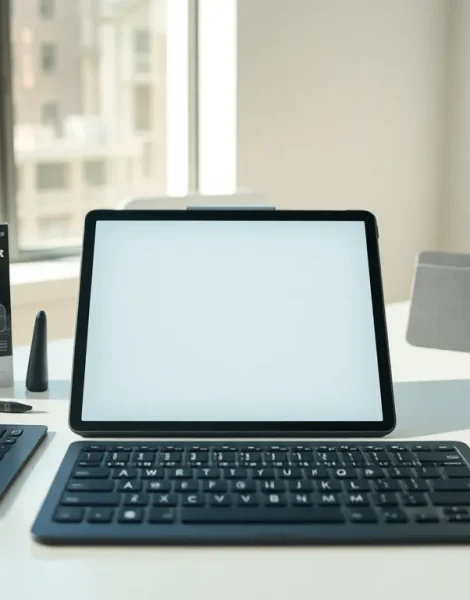
Tablet tools transform a basic device into a powerful workstation. Whether someone sketches digital art, writes reports, or streams content, the right accessories make all the difference. Modern tablets offer impressive capabilities, but they reach their full potential only with proper tools. This guide covers the essential tablet tools that enhance productivity and creativity. From stylus pens to protective cases, each accessory serves a specific purpose. Readers will discover which tablet tools fit their needs and how to maximize their device investment.
Table of Contents
ToggleKey Takeaways
- Tablet tools like stylus pens, keyboards, and protective cases transform basic devices into powerful workstations for creativity and productivity.
- Stylus pens with higher pressure sensitivity levels (4,096+) offer finer control, making them ideal for professional illustrators and digital artists.
- Bluetooth keyboards and keyboard cases turn tablets into laptop replacements, benefiting writers, students, and business professionals.
- Protective cases and adjustable stands provide both safety and ergonomic benefits, reducing neck strain during extended tablet use.
- Screen protectors—including tempered glass, matte, and privacy options—preserve display quality and protect sensitive information in public spaces.
- Essential apps like Procreate, Microsoft 365, and GoodNotes maximize your tablet tools investment by unlocking full creative and productivity potential.
Stylus Pens and Digital Pencils
A stylus pen ranks among the most valuable tablet tools for creative professionals and note-takers alike. These digital pencils convert tablets into drawing pads, sketchbooks, and handwriting surfaces.
The Apple Pencil leads the market for iPad users. It offers pressure sensitivity, tilt recognition, and minimal latency. Artists appreciate how it mimics traditional drawing instruments. Samsung’s S Pen provides similar functionality for Galaxy Tab owners, with the added benefit of air gestures and remote control features.
Third-party options expand the choices for budget-conscious buyers. Brands like Logitech, Adonit, and Wacom produce quality stylus pens at lower price points. Some work across multiple tablet platforms, which appeals to users who own different devices.
Key features to consider include:
- Pressure sensitivity levels – Higher levels mean finer control over line thickness
- Palm rejection – Prevents accidental marks while writing or drawing
- Battery life – Some styluses charge wirelessly: others need USB connections
- Tip material – Rubber, fiber, or hard plastic tips each offer different feels
Professional illustrators often choose tablet tools with 4,096 or more pressure sensitivity levels. Students taking class notes may prefer simpler, more affordable models. The right stylus depends on how someone plans to use their tablet.
Keyboard and Typing Accessories
Keyboards turn tablets into laptop replacements. These tablet tools add physical keys that speed up typing and reduce screen fatigue.
Apple’s Magic Keyboard and Smart Keyboard Folio attach magnetically to compatible iPads. They include trackpads, backlit keys, and pass-through charging ports. Microsoft’s Surface keyboards integrate seamlessly with Surface tablets, creating a near-laptop experience.
Bluetooth keyboards work with almost any tablet. Logitech produces several popular models, including the K380 and K480. These connect to multiple devices and switch between them with a button press. Compact folding keyboards travel well and fit into small bags.
Some users prefer keyboard cases. These combine protection and typing functionality in one package. Zagg, Brydge, and other manufacturers offer models for various tablet sizes.
When selecting keyboard tablet tools, consider these factors:
- Key travel distance – Deeper travel often feels more comfortable for extended typing
- Connectivity – Bluetooth, USB-C, or magnetic attachment each has pros and cons
- Weight – Lighter keyboards maintain tablet portability
- Battery requirements – Some keyboards draw power from the tablet: others need separate charging
Writers, students, and business professionals benefit most from quality keyboard accessories. A good keyboard transforms casual tablet use into serious productivity work.
Protective Cases and Stands
Protective cases shield expensive tablets from drops, scratches, and daily wear. These tablet tools also add functionality through built-in stands and viewing angles.
Folio cases remain the most popular option. They cover both the front and back of tablets while allowing full access to ports and buttons. Many include magnetic closures that wake or sleep the device automatically.
Rugged cases suit active users and parents with young children. OtterBox, Spigen, and UAG manufacture heavy-duty options that survive significant impacts. Construction workers, outdoor enthusiasts, and travelers often choose these sturdier tablet tools.
Stands provide ergonomic benefits separate from cases. Adjustable tablet stands raise screens to eye level, which reduces neck strain during long use sessions. Some stands rotate between portrait and landscape orientations. Others include ventilation to keep tablets cool.
Popular case and stand features include:
- Kickstands – Built-in props that hold tablets at various angles
- Pencil holders – Storage slots for stylus pens
- Wireless charging compatibility – Cases thin enough to allow charging without removal
- Hand straps – Secure grips for one-handed tablet use
The best protective tablet tools balance safety with convenience. Bulky cases offer maximum protection but add weight. Slim cases maintain portability but provide less cushioning. Users should match their choice to their lifestyle and risk tolerance.
Screen Protectors and Display Enhancements
Screen protectors prevent scratches and cracks on tablet displays. These affordable tablet tools preserve resale value and maintain visual clarity over time.
Tempered glass protectors offer the best scratch resistance. They feel smooth under fingers and styluses. Quality options from brands like amFilm and Spigen install without bubbles when applied correctly.
Matte screen protectors reduce glare and fingerprints. Artists prefer them because they create a paper-like texture for drawing. The Paperlike brand specifically targets digital artists and note-takers who want friction similar to actual paper.
Privacy screen protectors limit viewing angles. They darken the screen when viewed from the side, which protects sensitive information in public spaces. Business travelers and healthcare workers frequently choose these tablet tools.
Display enhancement accessories extend beyond protectors:
- Anti-glare filters – Reduce reflections in bright environments
- Blue light blocking protectors – Minimize eye strain during evening use
- Cleaning kits – Microfiber cloths and sprays keep screens spotless
- Portable monitors – External displays that connect to tablets for dual-screen setups
Installation matters as much as product quality. Dust particles trapped under protectors create permanent bubbles. Most manufacturers include alignment tools and cleaning supplies. Users should apply protectors in dust-free environments for best results.
Must-Have Apps for Tablet Users
Software represents another category of essential tablet tools. The right apps maximize hardware capabilities and expand what tablets can accomplish.
Productivity apps form the foundation of serious tablet use. Microsoft 365 and Google Workspace provide document editing, spreadsheets, and presentations. Notion and Obsidian organize notes and projects. These apps sync across devices, so work continues seamlessly between tablets and computers.
Creative apps unlock artistic potential. Procreate dominates iPad illustration. Adobe Fresco and Photoshop offer professional-grade editing. Clip Studio Paint appeals to comic artists and animators. Musicians use GarageBand, FL Studio Mobile, and similar apps for composition and recording.
Note-taking apps suit students and professionals who prefer handwriting. GoodNotes and Notability convert tablets into digital notebooks. They support stylus input, audio recording, and PDF annotation. OneNote integrates with Microsoft services for team collaboration.
Utility apps round out the essential tablet tools collection:
- File managers – Files by Google, Documents by Readdle
- Cloud storage – Dropbox, iCloud, Google Drive
- Video conferencing – Zoom, Teams, Google Meet
- Screen recording – Built-in tools plus third-party options
Free versions of many apps provide basic functionality. Premium subscriptions unlock advanced features. Users should evaluate their actual needs before committing to paid plans. Many people pay for capabilities they never use.


