
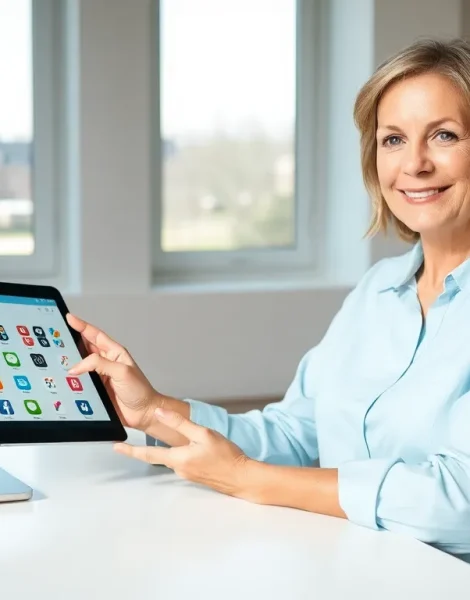
Learning how to use tablets doesn’t have to feel overwhelming. These portable devices have become essential tools for work, entertainment, and staying connected. Whether someone just unwrapped a new iPad, Samsung Galaxy Tab, or Amazon Fire tablet, the basics remain surprisingly similar across brands.
Tablets sit somewhere between smartphones and laptops. They offer larger screens than phones but more portability than computers. This makes them perfect for reading, streaming video, browsing the web, or handling light work tasks. The good news? Most people can master the fundamentals within an afternoon.
This guide walks through everything a first-time tablet user needs to know. From initial setup to battery optimization, each section covers practical steps anyone can follow.
Table of Contents
ToggleKey Takeaways
- Learning how to use tablets is straightforward—most people can master the basics within an afternoon.
- During initial setup, connect to Wi-Fi, sign into your account (Apple ID, Google, or Amazon), and check for software updates.
- Essential touch gestures include tap, swipe, pinch-to-zoom, and long press to navigate your tablet’s interface effectively.
- Take advantage of split-screen multitasking, voice assistants, and screen recording—features many beginners overlook.
- Extend battery life by lowering screen brightness, managing background apps, and using Wi-Fi instead of cellular data.
- Keep your tablet running smoothly by regularly deleting unused apps and clearing storage when it fills up.
Setting Up Your Tablet for the First Time
The first time someone powers on a tablet, a setup wizard appears. This process takes about 10-15 minutes and establishes the foundation for everything that follows.
Connecting to Wi-Fi
Tablets need an internet connection to function properly. During setup, the device displays available Wi-Fi networks. Users select their home network and enter the password. Without Wi-Fi, app downloads, updates, and most features won’t work.
Creating or Signing Into an Account
iPads require an Apple ID. Android tablets need a Google account. Amazon Fire tablets use Amazon accounts. These accounts sync purchases, store data in the cloud, and enable app downloads. Anyone who already owns a smartphone probably has an existing account they can use.
Updating the Operating System
New tablets often ship with outdated software. After completing initial setup, users should check for system updates. On iPads, this option lives in Settings > General > Software Update. Android tablets place it under Settings > System > Software Update. Updates fix bugs and add security patches.
Adjusting Basic Settings
Before diving deeper, a few quick adjustments help personalize the experience. Users can set their preferred language, time zone, and display brightness. Many people also enable automatic screen lock after a short period of inactivity. This simple step protects privacy and saves battery.
Navigating the Tablet Interface
Understanding how to move around a tablet’s interface makes everything else easier. Touchscreens respond to specific gestures that become second nature with practice.
Basic Touch Gestures
Tap – A single tap opens apps, selects items, and activates buttons. Think of it like clicking a mouse.
Swipe – Dragging a finger across the screen scrolls through content. Swiping left or right often moves between pages or dismisses items.
Pinch and spread – Placing two fingers on the screen and moving them apart zooms in. Pinching them together zooms out. This works great for photos, maps, and web pages.
Long press – Holding a finger on an item for a second or two usually reveals additional options. On the home screen, this lets users rearrange or delete apps.
Understanding the Home Screen
The home screen displays app icons organized in a grid. Most tablets allow users to create folders by dragging one app icon onto another. This helps organize similar apps together, games in one folder, productivity tools in another.
A dock or favorites bar typically sits at the bottom of the screen. Users can place their most-used apps here for quick access regardless of which home screen page they’re viewing.
Using the Control Center and Quick Settings
iPads have Control Center, accessible by swiping down from the top-right corner. Android tablets offer Quick Settings through a swipe down from the top of the screen. Both provide fast access to Wi-Fi toggles, brightness sliders, volume controls, and airplane mode.
Essential Apps and Features to Explore
A tablet’s value comes from the apps installed on it. Every tablet includes pre-loaded apps, but the app stores offer millions more options.
Pre-Installed Apps Worth Knowing
Most tablets ship with a web browser (Safari on iPad, Chrome on Android), an email app, a calendar, a notes app, and a camera. These cover basic needs immediately. The camera app on tablets works well for video calls, though the image quality typically falls short of smartphones.
Downloading New Apps
iPad users visit the App Store. Android tablet owners use the Google Play Store. Amazon Fire tablets have the Amazon Appstore. Searching for apps by category, like “streaming” or “photo editing”, surfaces popular options.
Many excellent apps cost nothing. Free apps for video calls include Zoom, Skype, and FaceTime (iPad only). Netflix, YouTube, and Disney+ handle entertainment. Google Docs, Microsoft Word, and Apple Pages provide document creation.
Features Many Beginners Miss
Split-screen multitasking – Most modern tablets let users run two apps side by side. This allows someone to watch a video while taking notes or compare two websites simultaneously.
Voice assistants – Siri (iPad), Google Assistant (Android), and Alexa (Fire tablets) can set reminders, answer questions, and control smart home devices through voice commands.
Screen recording – Built-in screen recording captures everything happening on the display. This proves useful for saving video calls or creating tutorials.
Tips for Extending Battery Life and Performance
Tablets generally last 8-12 hours on a single charge, but certain habits drain batteries faster. A few adjustments keep devices running longer and performing better.
Screen Brightness Matters Most
The display consumes more power than any other component. Lowering brightness to around 50% extends battery life significantly. Enabling auto-brightness lets the tablet adjust based on ambient light conditions.
Manage Background App Activity
Apps running in the background continue using resources even when not visible. On iPads, users can disable Background App Refresh in Settings for apps that don’t need constant updates. Android tablets offer similar controls under Battery settings.
Close Unused Apps Occasionally
While modern tablets handle multiple open apps efficiently, closing apps that haven’t been used in days frees up memory. Double-clicking the home button (iPad) or using the recent apps button (Android) shows all open apps. Swiping them away closes them.
Keep Storage Under Control
Tablets slow down when storage fills up. Deleting unused apps, clearing browser cache, and moving photos to cloud storage keeps things running smoothly. Most tablets display storage usage in Settings under Storage or General.
Use Wi-Fi Instead of Cellular
For tablets with cellular connectivity, using Wi-Fi whenever possible conserves battery. Cellular radios work harder to maintain connections, especially in areas with weak signals.


