
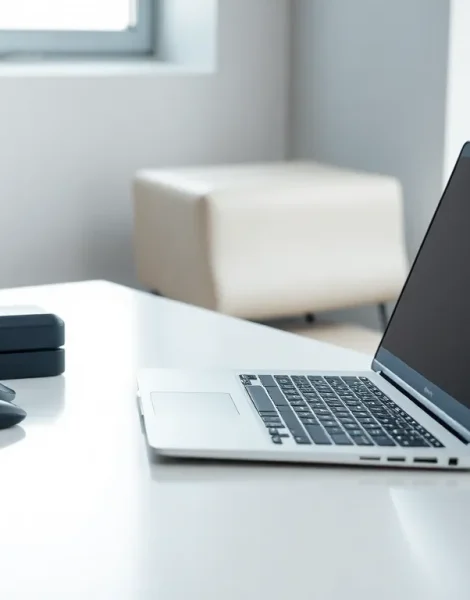
Learning how to laptops work, which models fit specific needs, and how to keep them running smoothly saves time and money. Laptops serve as essential tools for work, school, entertainment, and creative projects. This guide covers laptop types, key features to consider before buying, setup steps for new owners, and maintenance tips that extend device lifespan. Whether someone needs a budget-friendly option for basic tasks or a high-performance machine for gaming, understanding laptops helps buyers make smart decisions.
Table of Contents
ToggleKey Takeaways
- Understanding how laptops work and which types fit your needs—ultrabooks, gaming laptops, Chromebooks, or 2-in-1s—helps you make smarter purchasing decisions.
- Prioritize key specs like CPU (Intel i5/AMD Ryzen 5 for everyday use), at least 8GB RAM, and an SSD for faster performance when choosing a laptop.
- Complete essential setup steps on new laptops: run OS updates, remove bloatware, enable encryption, and configure cloud backups for security and performance.
- Maintain your laptop’s longevity by managing storage space, keeping software updated, and cleaning dust from vents and keyboards regularly.
- Protect battery health by keeping charge levels between 20-80% and avoid leaving laptops plugged in at 100% constantly.
- Prevent overheating by using laptops on hard, flat surfaces and running periodic malware scans to keep your device secure and running smoothly.
Understanding Laptop Types and Their Uses
Different laptop categories serve different purposes. Understanding these distinctions helps buyers match their needs to the right device.
Ultrabooks
Ultrabooks prioritize portability. These thin, lightweight laptops typically weigh under 3 pounds and offer battery life exceeding 10 hours. They work best for professionals who travel frequently, students who carry devices between classes, and anyone who values mobility over raw power. Popular examples include the MacBook Air and Dell XPS 13.
Gaming Laptops
Gaming laptops pack dedicated graphics cards, high-refresh-rate displays, and powerful processors. They handle demanding games, video editing, and 3D rendering. These machines run heavier and hotter than ultrabooks, and their batteries drain faster. Brands like ASUS ROG, MSI, and Razer dominate this category.
Chromebooks
Chromebooks run Chrome OS and rely heavily on cloud-based applications. They cost less than traditional laptops, many models start under $300. Students and casual users who primarily browse the web, stream videos, and use Google Workspace find Chromebooks sufficient. But, they struggle with offline work and software that requires Windows or macOS.
Workstations
Mobile workstations target engineers, architects, data scientists, and video professionals. These laptops feature high-end CPUs, professional-grade GPUs, and large amounts of RAM. They cost more but deliver performance that standard laptops cannot match.
2-in-1 Convertibles
2-in-1 laptops function as both laptops and tablets. Users can fold, flip, or detach the screen depending on the design. Artists who draw digitally and presenters who share screens benefit from this flexibility. The Surface Pro and Lenovo Yoga lines represent this category well.
Key Features to Consider When Buying a Laptop
Specs and features vary widely across laptops. Prioritizing the right components prevents overspending on unnecessary power or underspending on critical capabilities.
Processor (CPU)
The CPU determines overall speed. Intel Core i5 and AMD Ryzen 5 processors handle most everyday tasks comfortably. Power users who run demanding software should consider Core i7/i9 or Ryzen 7/9 chips. Apple’s M-series processors deliver excellent performance and battery efficiency for Mac users.
RAM (Memory)
8GB of RAM works for basic use, web browsing, document editing, and streaming. Anyone who multitasks heavily, edits photos, or runs virtual machines should opt for 16GB or more. Some laptops allow RAM upgrades: others solder memory to the motherboard permanently.
Storage
Solid-state drives (SSDs) outperform traditional hard drives in speed and durability. A 256GB SSD provides minimum viable storage, but 512GB offers more breathing room. Creative professionals and gamers often need 1TB or larger drives.
Display
Screen size affects portability and productivity. 13-14 inch displays balance portability and usability. 15-16 inch screens suit users who work with spreadsheets, edit video, or game regularly. Resolution matters too, 1080p (Full HD) suffices for most people, while 4K panels benefit photo and video editors.
Battery Life
Manufacturers often overestimate battery life in marketing. Real-world usage typically delivers 20-30% less than advertised. Reading independent reviews reveals actual battery performance. Users who work away from outlets frequently should prioritize laptops with 10+ hours of tested battery life.
Build Quality and Ports
Metal chassis last longer than plastic ones. Port selection matters for connectivity, check for USB-A, USB-C, HDMI, and SD card slots based on peripheral needs. Fewer ports mean carrying dongles and adapters.
Essential Setup Steps for New Laptop Owners
A proper initial setup improves security, performance, and user experience from day one.
Complete Operating System Updates
New laptops ship with outdated software. Running all available updates patches security vulnerabilities and improves stability. Windows Update, macOS Software Update, or Chrome OS settings handle this process. Updates may require multiple restarts.
Remove Bloatware
Many Windows laptops come preloaded with trial software and manufacturer utilities that consume resources. Uninstalling unnecessary programs frees storage space and improves performance. Keep only essential software and applications the user actually needs.
Configure Security Settings
Enable full-disk encryption (BitLocker on Windows, FileVault on macOS) to protect data if the laptop gets stolen. Set up Windows Hello, Touch ID, or a strong password for login. Install antivirus software on Windows machines, Windows Defender provides baseline protection, though third-party options offer additional features.
Set Up Cloud Backups
Data loss happens. Configuring automatic backups to services like Google Drive, OneDrive, iCloud, or Dropbox protects important files. Users can also create local backups to external drives using built-in tools like Windows Backup or Time Machine.
Customize Power Settings
Adjusting power settings extends battery life and optimizes performance. Most operating systems offer balanced, power saver, and high-performance modes. Reducing screen brightness and setting shorter sleep timers conserves battery during mobile use.
Tips for Maintaining Your Laptop’s Performance
Regular maintenance keeps laptops running smoothly for years. Neglecting basic care leads to slowdowns, overheating, and premature hardware failure.
Keep Software Updated
Operating system and application updates fix bugs, close security holes, and sometimes improve performance. Enable automatic updates or check manually each week. Outdated software creates vulnerabilities that hackers exploit.
Manage Storage Space
Full drives slow down laptops significantly. Delete unused files, empty the recycle bin regularly, and move large media collections to external storage or cloud services. Both Windows and macOS include built-in tools that identify and remove temporary files.
Clean the Hardware
Dust accumulates in keyboard crevices and cooling vents. Compressed air removes debris from hard-to-reach areas. Wiping the screen with a microfiber cloth and appropriate cleaner prevents scratches and maintains visibility. Clean keyboards monthly and screens weekly for best results.
Monitor Battery Health
Lithium-ion batteries degrade over time. Keeping charge levels between 20% and 80% extends battery lifespan. Avoid leaving laptops plugged in constantly at 100%. Many laptops include battery health settings that limit maximum charge to preserve longevity.
Watch for Overheating
Overheating damages internal components and causes throttling. Use laptops on hard, flat surfaces, not beds or couches that block airflow. Cooling pads help during intensive tasks. If a laptop runs hot consistently, clean the internal fans or have a professional replace thermal paste.
Run Periodic Malware Scans
Even with good browsing habits, malware can slip through. Schedule weekly antivirus scans and occasional full-system scans. Malwarebytes and similar tools catch threats that standard antivirus programs miss.


