
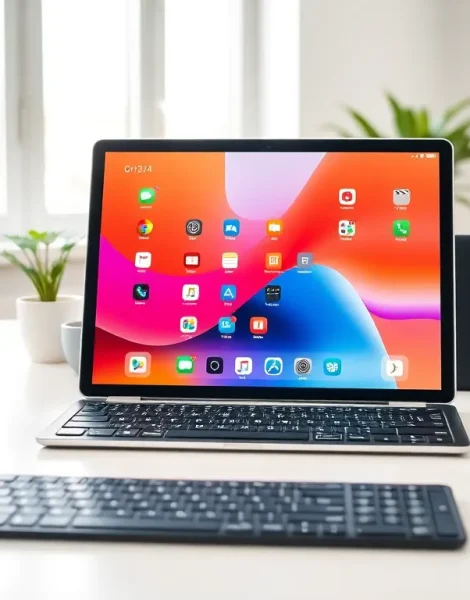
Tablets have become essential tools for work, entertainment, and daily tasks. But, most users only scratch the surface of what these devices can do. The right tablet tips can transform an average experience into something far more efficient and enjoyable.
Whether someone uses their tablet for streaming, note-taking, or managing projects, a few smart adjustments make a significant difference. This guide covers practical tablet tips that help users get more from their devices, from boosting performance to extending battery life and everything in between.
Table of Contents
ToggleKey Takeaways
- Close background apps and lower screen brightness to significantly extend your tablet’s battery life and boost performance.
- Use split-screen mode and connect a Bluetooth keyboard to transform your tablet into a productivity powerhouse.
- Enable biometric authentication and set up remote wipe to protect sensitive data stored on your tablet.
- Organize your home screen with folders and widgets for faster access to frequently used apps.
- Keep your tablet’s charge between 20% and 80% and use a quality case to extend its lifespan by years.
- These tablet tips help users unlock hidden features and get more value from their devices every day.
Optimize Your Tablet’s Performance and Battery Life
A tablet’s speed and battery life often decline over time. Simple adjustments can reverse this trend and keep the device running smoothly.
Manage Background Apps
Background apps consume memory and drain the battery. Users should regularly close apps they aren’t using. Both iOS and Android offer built-in tools to view which apps use the most resources. Disabling background refresh for non-essential apps saves power without affecting daily use.
Adjust Display Settings
The screen is the biggest battery drain on any tablet. Lowering brightness to 50-60% extends battery life significantly. Enabling auto-brightness lets the tablet adjust based on lighting conditions. Users can also reduce the screen timeout to 30 seconds or one minute.
Update Software Regularly
Software updates include performance improvements and bug fixes. Skipping updates often leads to slower performance and security vulnerabilities. Users should enable automatic updates or check for them monthly.
Clear Cache and Storage
Cached data builds up over time and slows tablets down. Clearing the cache through settings or individual app menus frees up space. Deleting unused apps and old downloads also helps maintain speed. A tablet with 20% or more free storage typically runs better than one that’s nearly full.
Master Productivity Features and Multitasking
Modern tablets offer powerful productivity features that rival laptops. Learning these features turns a tablet into a serious work machine.
Use Split-Screen Mode
Split-screen mode allows two apps to run side by side. This feature works well for taking notes during video calls or referencing documents while writing emails. On iPads, users drag an app from the dock while another app is open. Android tablets typically use a button in the recent apps menu.
Connect a Keyboard and Mouse
Bluetooth keyboards and mice transform tablets into laptop alternatives. Most tablets support these accessories natively. Keyboard shortcuts like copy, paste, and undo work just as they do on computers. Some users find this setup more portable than carrying a full laptop.
Leverage Cloud Storage
Cloud services like Google Drive, iCloud, and Dropbox keep files accessible across devices. Users can start a document on their tablet and finish it on their phone or computer. These tablet tips around cloud integration make workflows seamless and reduce the need for large local storage.
Try Handwriting and Note Apps
Tablets with stylus support excel at handwriting. Apps like Notability, GoodNotes, and Samsung Notes convert handwriting to text and organize notes efficiently. This approach works particularly well for students and professionals who prefer writing over typing.
Enhance Security and Protect Your Data
Tablets store personal photos, financial apps, and sensitive information. Proper security measures protect this data from theft and hackers.
Enable Biometric Authentication
Face ID and fingerprint scanners offer quick, secure access. These methods are faster than typing passwords and harder to bypass. Users should enable biometric locks for banking apps and password managers too.
Use Strong Passwords and a Password Manager
Weak passwords remain a major security risk. Password managers generate and store unique passwords for every account. Apps like 1Password and Bitwarden work well on tablets and sync across devices.
Set Up Remote Wipe
Find My iPhone and Find My Device on Android let users locate lost tablets. These tools also allow remote wiping if the device is stolen. Setting this up takes five minutes and provides peace of mind.
Be Careful With Public Wi-Fi
Public networks pose security risks. Users should avoid accessing banking apps or entering passwords on coffee shop Wi-Fi. A VPN encrypts data and adds a layer of protection when public networks are unavoidable. These tablet tips around security may seem basic, but many users skip them entirely.
Customize Your Tablet for a Better User Experience
Personalization improves both usability and enjoyment. Tablets offer extensive customization options that many users never explore.
Organize the Home Screen
A cluttered home screen wastes time. Users should group apps into folders by category, work, social, entertainment, and utilities. Placing frequently used apps on the main screen speeds up daily tasks. Both iOS and Android allow widget placement for quick access to calendars, weather, and notes.
Adjust Accessibility Settings
Accessibility features benefit everyone, not just users with disabilities. Larger text, bold fonts, and increased contrast reduce eye strain. Voice control and text-to-speech options make hands-free operation possible. These settings hide in the accessibility menu and take just minutes to configure.
Customize Notifications
Constant notifications disrupt focus. Users can disable notifications for apps that don’t need them and enable “Do Not Disturb” during work hours or sleep. Priority modes let important calls and messages through while blocking everything else.
Explore Gesture Controls
Modern tablets rely heavily on gestures. Swiping from corners, pinching, and multi-finger taps perform various functions. Learning these gestures makes the tablet feel faster and more intuitive. Apple and Samsung both offer gesture tutorials in their settings apps.
Extend Your Tablet’s Lifespan With Proper Care
Tablets represent a significant investment. Proper care extends their useful life by years.
Use a Quality Case and Screen Protector
Drops cause the most tablet damage. A sturdy case absorbs impact and protects corners. Tempered glass screen protectors prevent scratches and cracks. These accessories cost far less than screen repairs.
Maintain Battery Health
Battery degradation affects all tablets over time. Keeping the charge between 20% and 80% extends battery lifespan. Users should avoid leaving tablets plugged in at 100% for extended periods. Extreme temperatures, both hot and cold, also damage batteries.
Clean the Device Properly
Dust and debris accumulate in ports and speakers. A soft, lint-free cloth cleans the screen safely. Compressed air removes particles from charging ports. Users should never use harsh chemicals or excessive moisture.
Know When to Replace the Battery
Batteries lose capacity after 2-3 years of regular use. When a tablet barely lasts a few hours on a full charge, battery replacement makes more sense than buying a new device. Apple and Samsung offer battery replacement services, and third-party repair shops provide more affordable options.


